How does this search box thing work?
Type in a word or phrase and click "Search." The engine will return a "results page" listing pages on the website that contain what you typed ("matches"). To visit a page that contains the word or phrase, click on the link to it that appears on the results page. You will not be sent directly to the part of the page where the match appears. Once you get to the page you will have to look for the match. (See Search on a Page)
Looking for a specific person/place?
The search engine is a handy tool for tracking names down on this website, but it frankly isn't very smart. It will search for what you type exactly the way you type it.
Last names and the way emigrants and their children spelled them often changed, sometimes more than once. A family called "Olesen" in 1905 may have altered the spelling to "Olson" by 1910. The family may then have decided to switch from the patronymic to a farm name - Ole Olson may have become Ole Ragnildsrud, and finally Ole Rud. Similarly, Ole may have been listed as Olaf, Oluf, Olof, or Olav in various records. In simpler times, the spoken word was more important than the written word, so differences in spellings were not considered important. In Norway the "surname" was actually the name of the farm where the individual lived, and changed each time that individual moved. For the researcher, this can create quite a challenge! Here are a few suggestions for using the search engine:
USING WILDCARDS You may want to use 'wildcards' when you type in what you're looking for. That means replacing characters with an asterisk. Not sure if the name might be Olesen, Olsen, Olson or Oleson? Try Ol*n.
EXACT PHRASE MATCHING If you search for Ole Olson, results will include all pages where one of the words is found. Your search will return pages that include Ole J. Olson, but also a page that includes Ole Pederson and Johan Olson. To search for an exact phrase, put it in quotation marks. Searching for "Ole Olson" will not return Ole J. Olson, but it will also not include Ole Pederson and Johan Olson.
Search results will tell you what pages/documents include the word or phrase you are looking for. Clicking on the link will not bring you to the exact point on a page where the first match is found. You will have to read through the page to find the information match, or follow the instructions for searching on a page.
If you search for a name and do not find it and you are fairly certain that individual was a member of the Hadeland Lag, you might want to go directly to the membership roster (1910-1989) and read through the list of names.
If you have any questions or would like further assistance, just e-mail!


I found the page, but where is my information?
Clicking on a result on the search results page will take you to the page where the information you are looking for can be found, but it won't take you to the exact place on the page where the information appears. Instead of reading through an entire page trying to look for your word or phrase, most browsers allow you to search on the current web page:
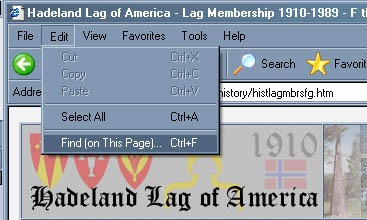
Point to "Edit" on the top taskbar. From the dropdown menu, click on "Find (on This Page):
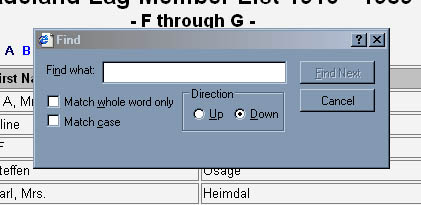
Type the word/phrase you want to find in the search box and choose the options and/or the direction you want to search (from the current cursor position).
After you click on "Find Next," the first match on the web page will be highlighted:
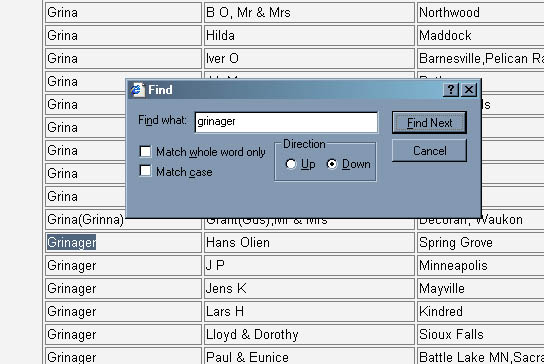
To find the same word/phrase on the page again, click on "Find Next." Close the "Find" window by clicking on the "X" box in its upper right hand corner.